How do I submit an exercise?
- Read the exercise instructions.
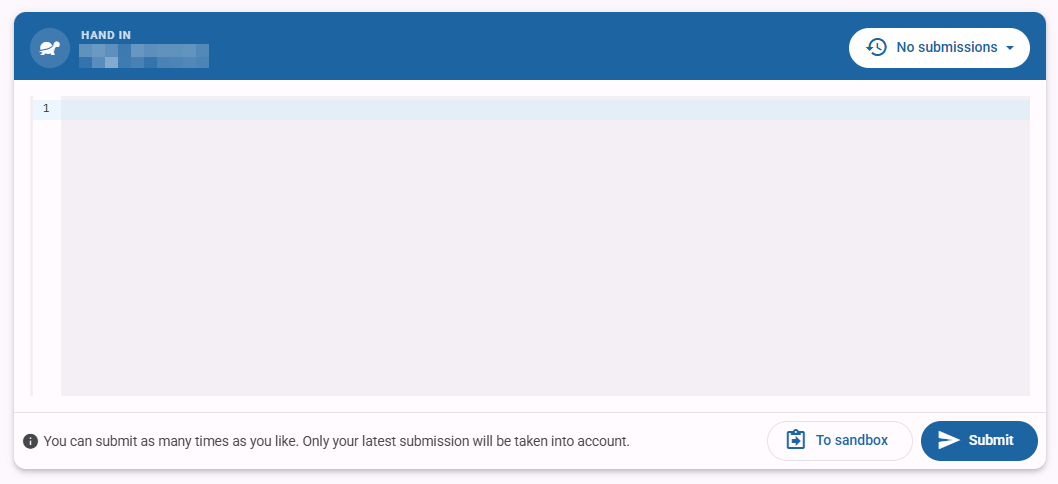
- Type your solution in the code editor at the bottom.
- Submit your code by clicking
Submitat the bottom right.
Where can I find the automatic feedback?
The feedback appears right after you submit your code.
If your submission is correct, the feedback looks like this:
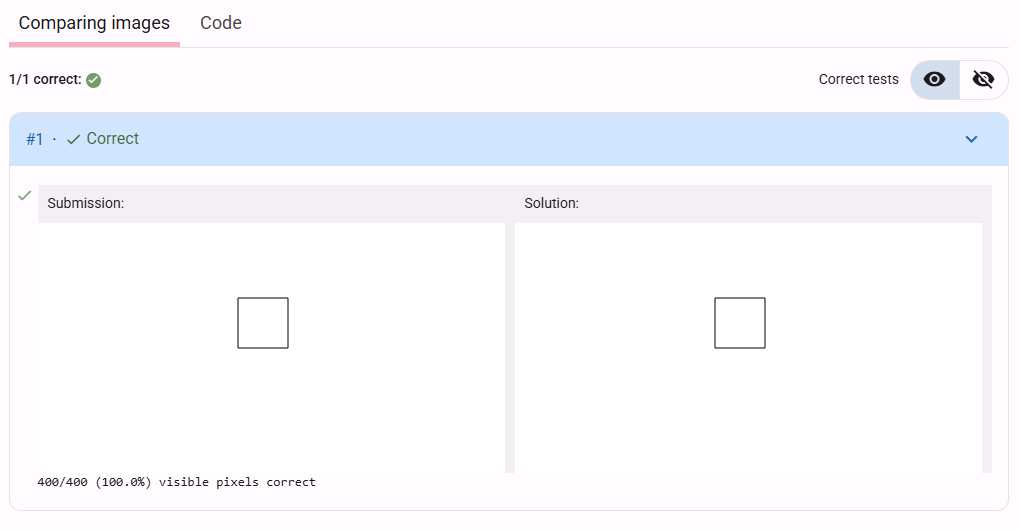
The feedback after each submission shows how close you are to the goal. Dodona shows your submission and the model solution side by side, so you can compare them easily. Dodona also shows the difference between the images and the percentage of visible pixels that match.
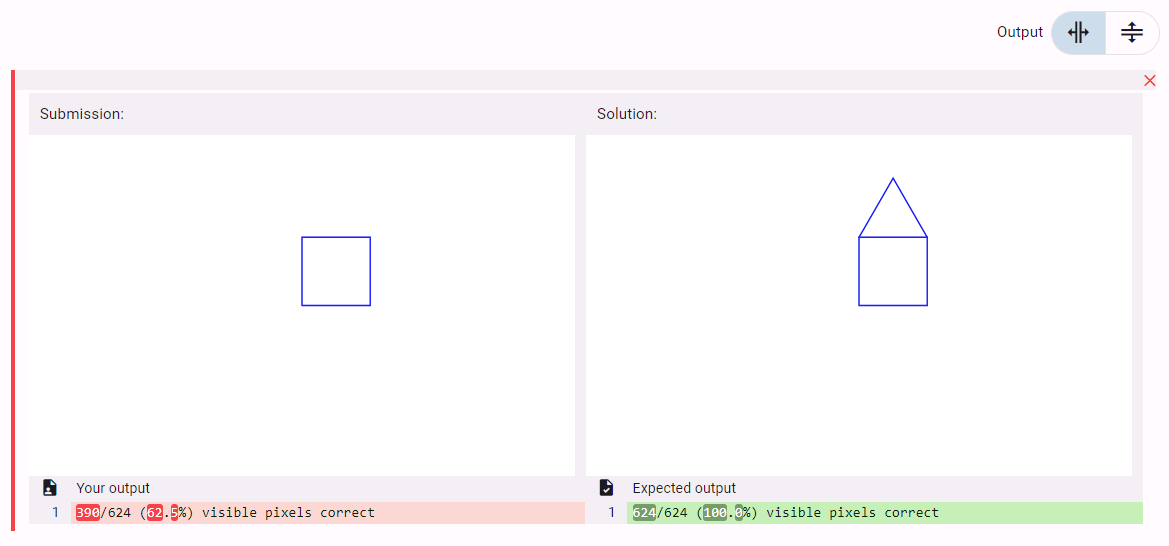
You can quickly see which parts of your drawing need changes. Is your solution not correct yet? Don’t worry. You can submit as often as you like.
More than one way
Only the final image is compared to check whether the exercise is correct. So there can be more than one solution.
I am ready
In the next exercise, you will submit your first solution. The code is already ready. You only need to click the submit button. Good luck!