After installing Python and PyCharm, we explain here how you can write and run your first Python program. You can either read through the instructions below or watch this instruction video.
Note
The most recent Python version is 3.13; the most recent PyCharm is 2025.2. Older versions of Python and PyCharm are used in the instructional video, which may result in minor differences.
We also do not use the Dodona plugin for PyCharm in the video. This plugin makes it possible to submit your solutions directly from PyCharm.
Create a new Python project
In PyCharm you can create multiple software projects that you can work on simultaneously. For our purposes we will make a single PyCharm project that will contain the solutions for all programming assignments you will work on in the Programming course. This way, you also get an overview of all the work you have delivered so far.
The next few paragraphs describe how you can create a new project in PyCharm, and how you create and organize your Python files in this project. This is done by taking the following steps:
-
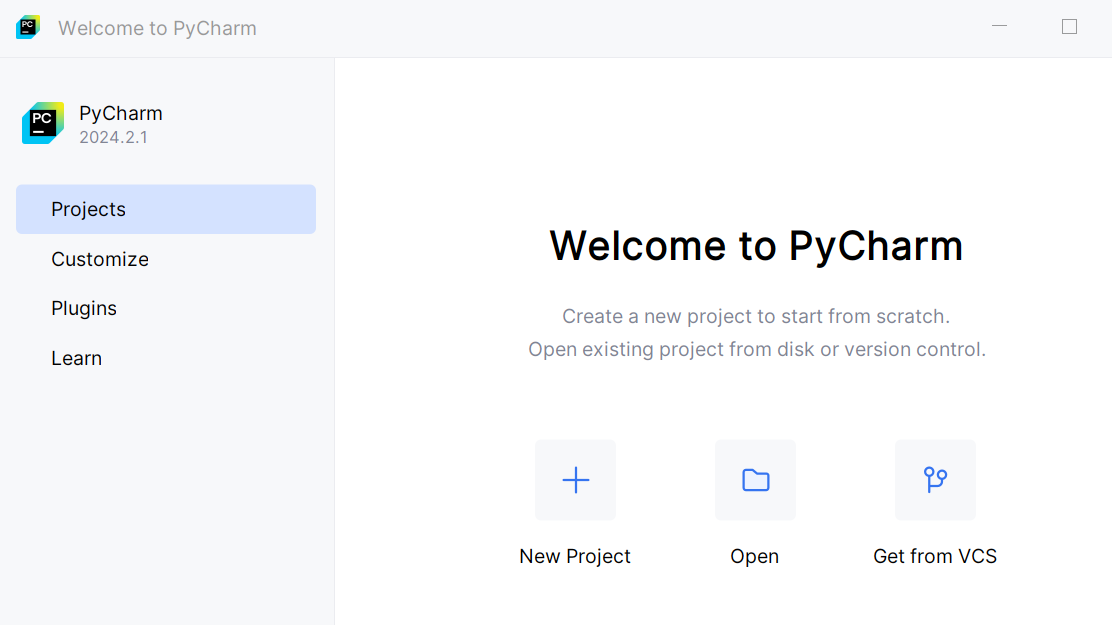
After launching PyCharm you choose New Project.
-
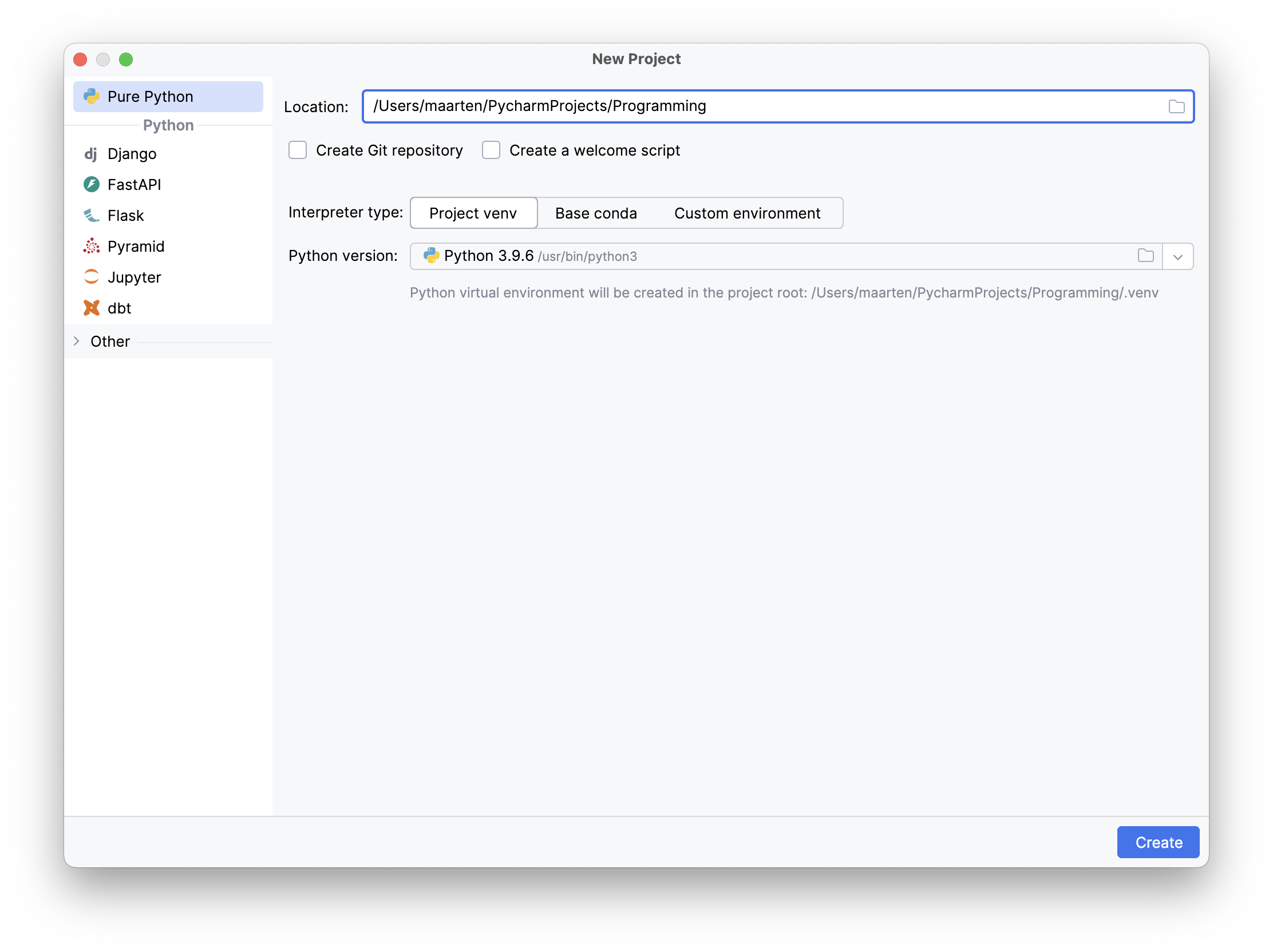
Give the new project a name (here Programming), possibly preceded by the path of the directory where you want to store the project; with the default installation, the Python version is automatically detected.
-
Click Create.
-
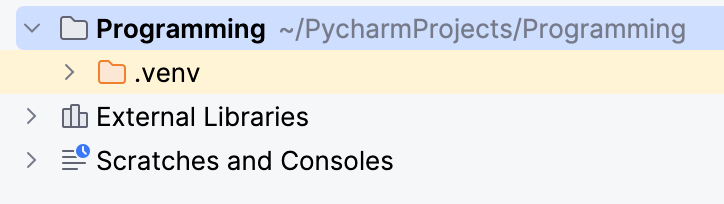
In the top left corner of the Project window you see the name of the newly created project, which is still empty for the time being; in this project you can create an entire directory structure to organize Python source files and any other files that belong to the project.
Create a new directories and a new file
In a PyCharm project you can create multiple files and directories. Files can either contain Python source code or other information. We will start with a file that initially has an empty content. The following procedure illustrates how to create a new folder and a new file in the Python project that we just created.
-
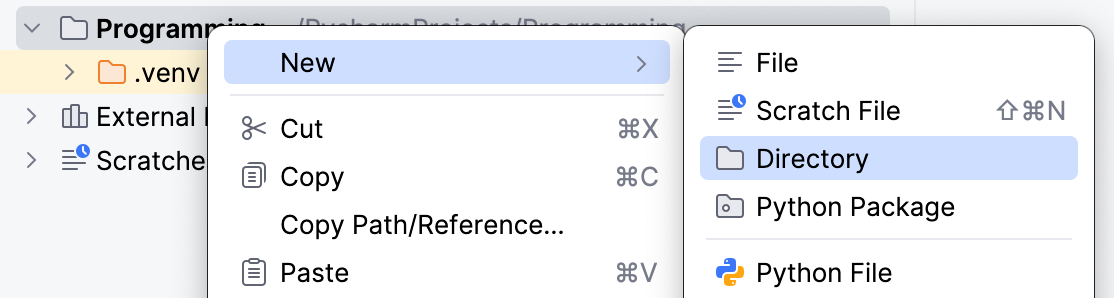
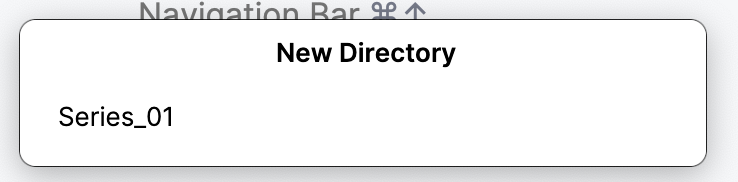
For each series of exercises we will create a separate directory; select the project (Programming) and navigate in the main menu (☰) to File ➤ New ➤ Directory; this opens the dialog for creating new directories; give the directory a name (here Series_01) and click OK.
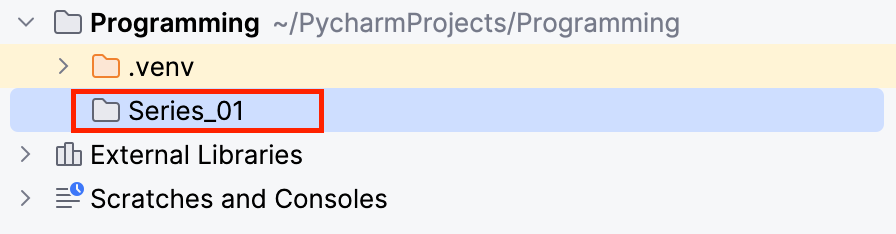
Your Project window should now show the newly created directory.
-
To be able to submit solutions directly from PyCharm to Dodona, we will install the Dodona plugin for PyCharm. With this plugin you can submit solutions to Dodona in a single click. To install the plugin, follow the instructions in the Dodona manual.
After installing the plugin, you can solve the first exercise and submit your solution for evaluation by Dodona.
-
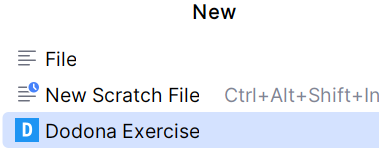
Select the directory where you want to create the file (Series_01) and navigate in the main menu to File ➤ New ➤ Dodona Exercise.
-
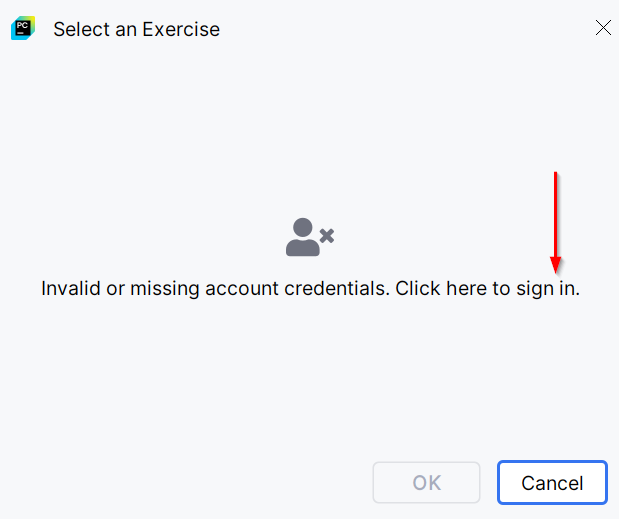
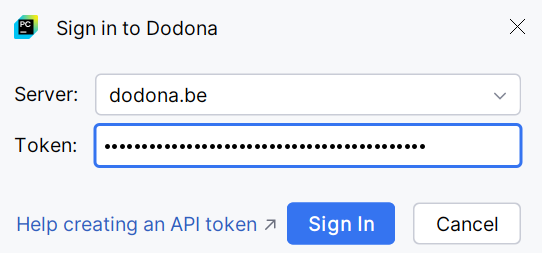
When creating your very first exercise, PyCharm will ask you for your API token.
-
Paste the new API token you created (and copied) during installation and configuration of the Dodona-plugin for PyCharm.
-
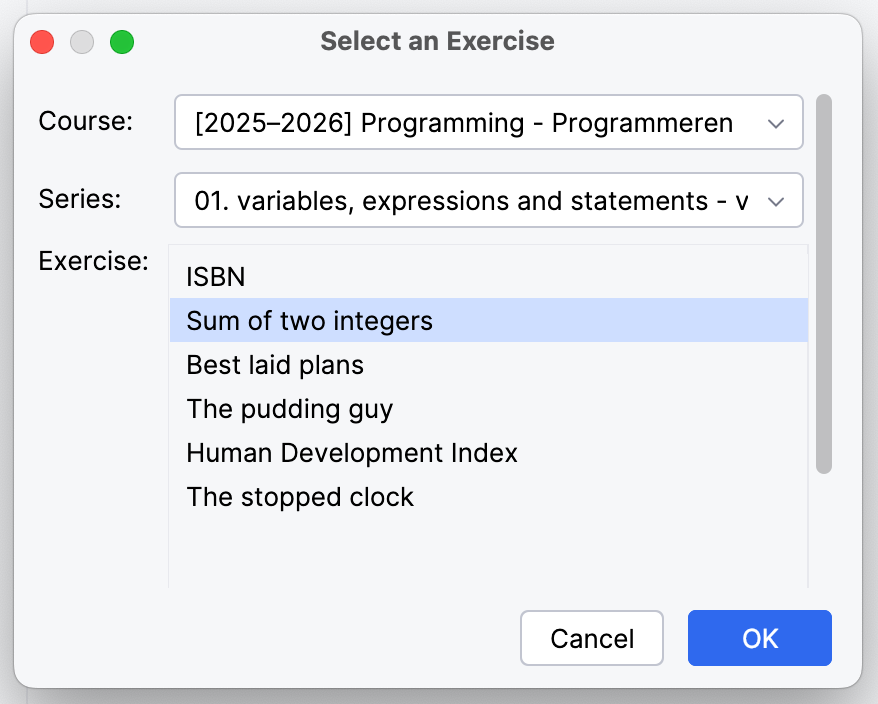
In the next step you will see a list of all courses you registered for in Dodona. Successively choose the right course (Programming - Programmeren), exercise series (Series_01) and exercise (Sum of two integers).
-
A new file will automatically be created in which you can write your solution.
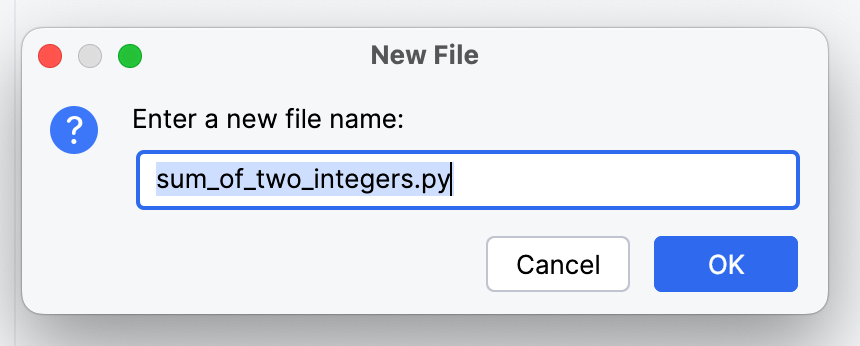
The first line of this file contains a comment (#) with a link to the corresponding exercise on Dodona. PyCharm uses this comment line to submit the file content as a solution for the corresponding exercise, [so do not remove it]{: style=”text-decoration:underline;”}. If you hold ctrl (or cmd on macOS) while clicking this link, the exercise description will open in a new browser window.

-
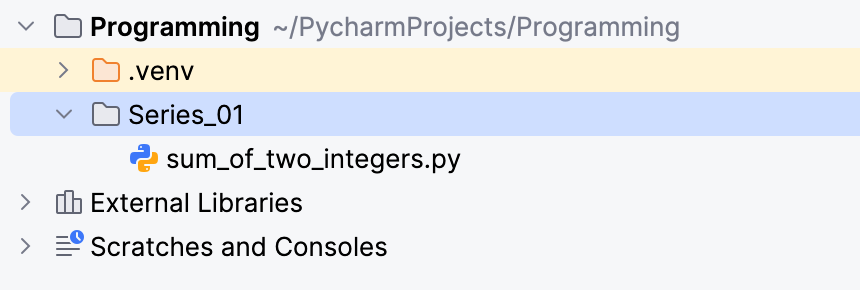
In the Project window you should now see a new icon with the name of the file you just created. The content of the file itself is displayed in the Editor window.
Write and execute code
-
Use the Editor window to write source code as your solution for the Sum of two integers exercise; the file will be saved automatically as
sum_of_integers.py.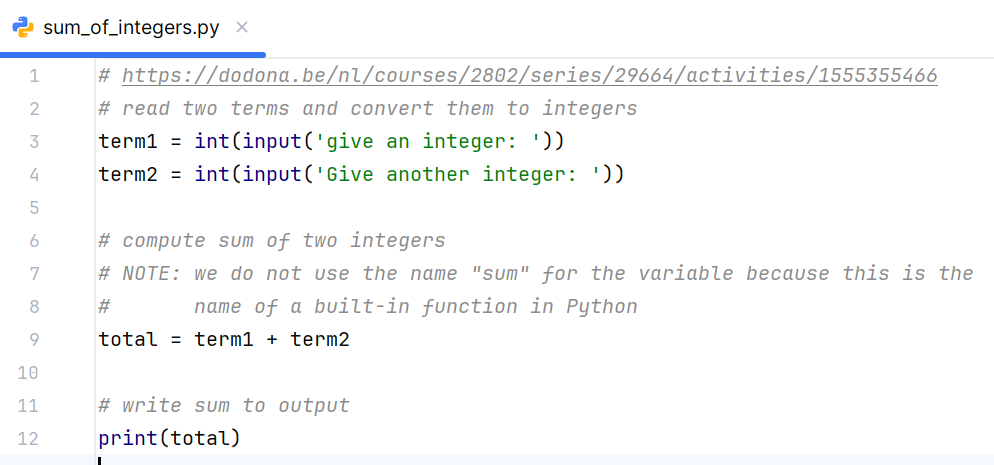
-
Use the right mouse button to click the file icon
sum_of_integers.pyor to click in the Editor window; select Run ‘sum_of_integers.py’ to run the program.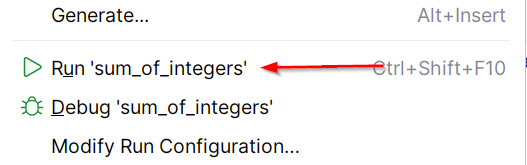
-
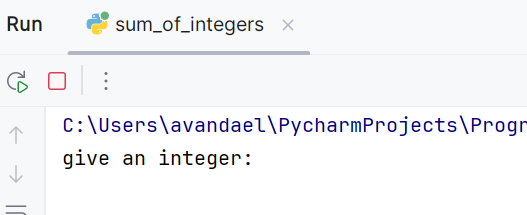
At the bottom of the window you now see a Console; this console shows the results of running the program and allows you to enter input; this will only happen if there are no error messages generated during compile-time or if no runtime exceptions were raised while running the program; if an error does occur, you will have to debug the program to find and remedy the error.
Submit your solution to Dodona
If you think you have a correct solution, you can submit it to Dodona. At the top right of the PyCharm window you should see a blue checkmark button.

This button will upload your code to Dodona, where it is tested thoroughly. After a few seconds you will see a notification at the bottom right of your screen that displays the test results.
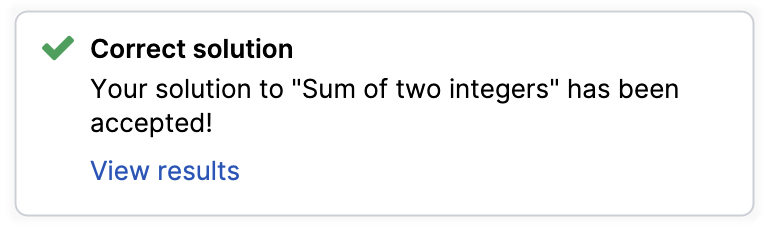
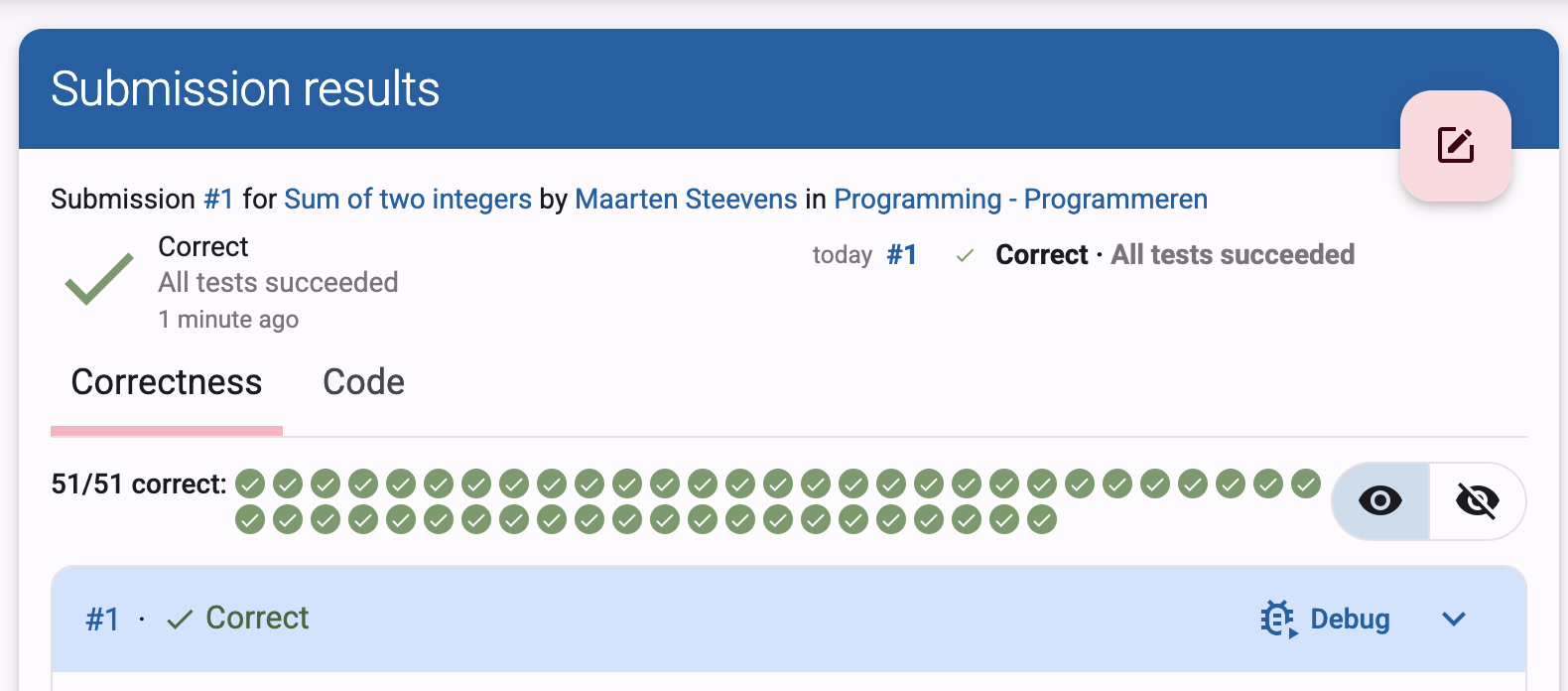
Click View results to open detailed test results (and the submitted code) in a new browser window.
You can submit as many solutions as you want until you have delivered a correct solution that also excels in terms of programming style.