Visualizations
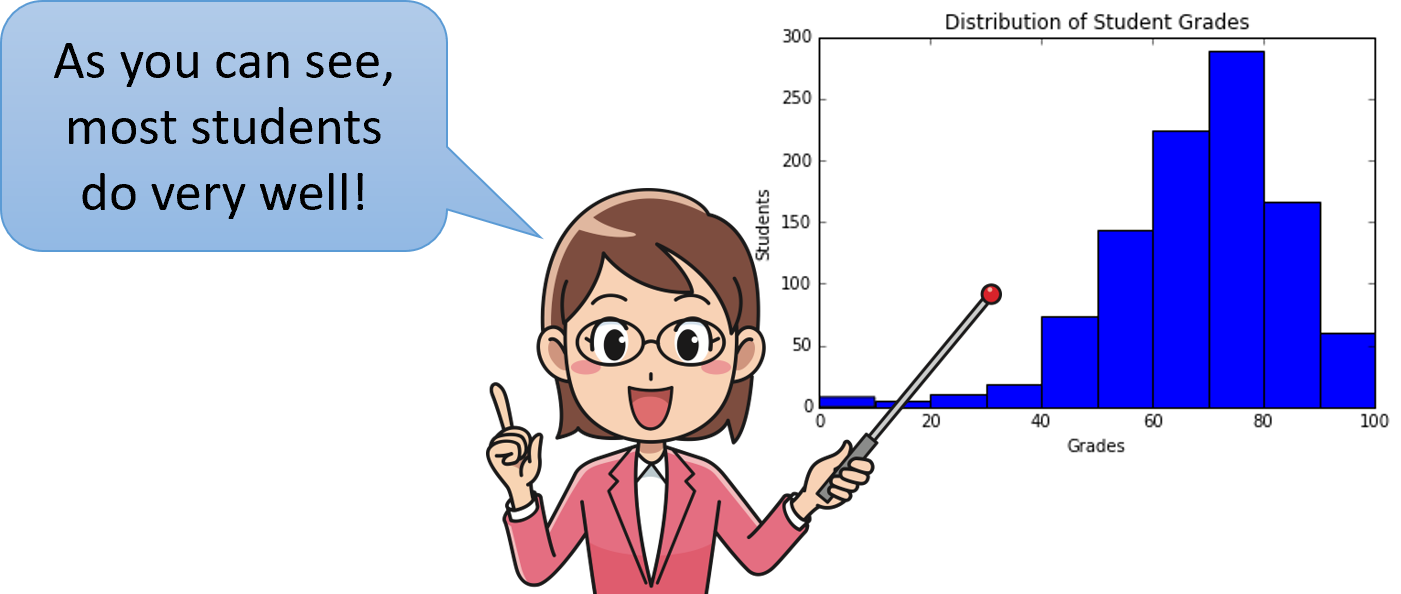
When you have a large amount of data, you can create visualizations to get a more intuitive understanding. These visualizations, known as plots or graphs, take advantage of the fact that humans are good at processing pictures. Making visualizations in Python is surprisingly easy, thanks to its many external libraries.
MatPlotLib
import matplotlib.pyplot as plt
The most popular library for plotting in Python is named MatPlotLib.
As a very large package, we only need to import a certain submodule within it.
By convention and for convenience, we rename that module to be plt.
You will see this line of code all the time at the start of programs in Python that make plots, so you should get used to typing it.
Types of Plots
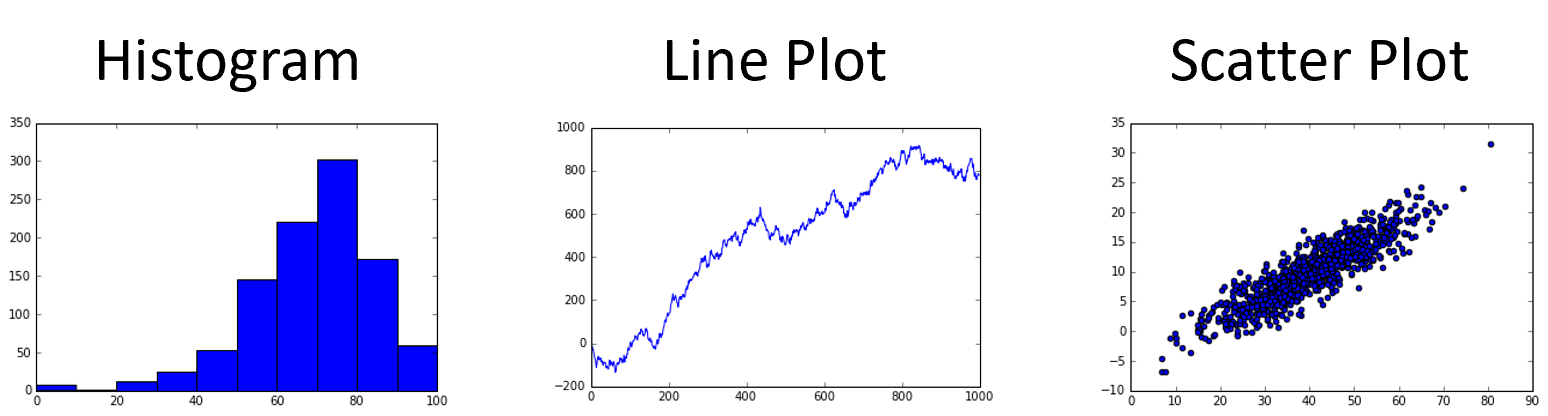
There are 3 kinds of plots that we’ll learn about. First are histograms, which show a distribution of numbers. Then there are line plots, that show a trend over time. Finally, there are scatter plots, which show the relationship between two corresponding lists of numbers. In fact, each of the plots shown takes in lists of integers or floats. MatPlotLib actually has many other kinds of plots. To learn how to make other kinds of plots, you can refer to the documentation.
Histograms
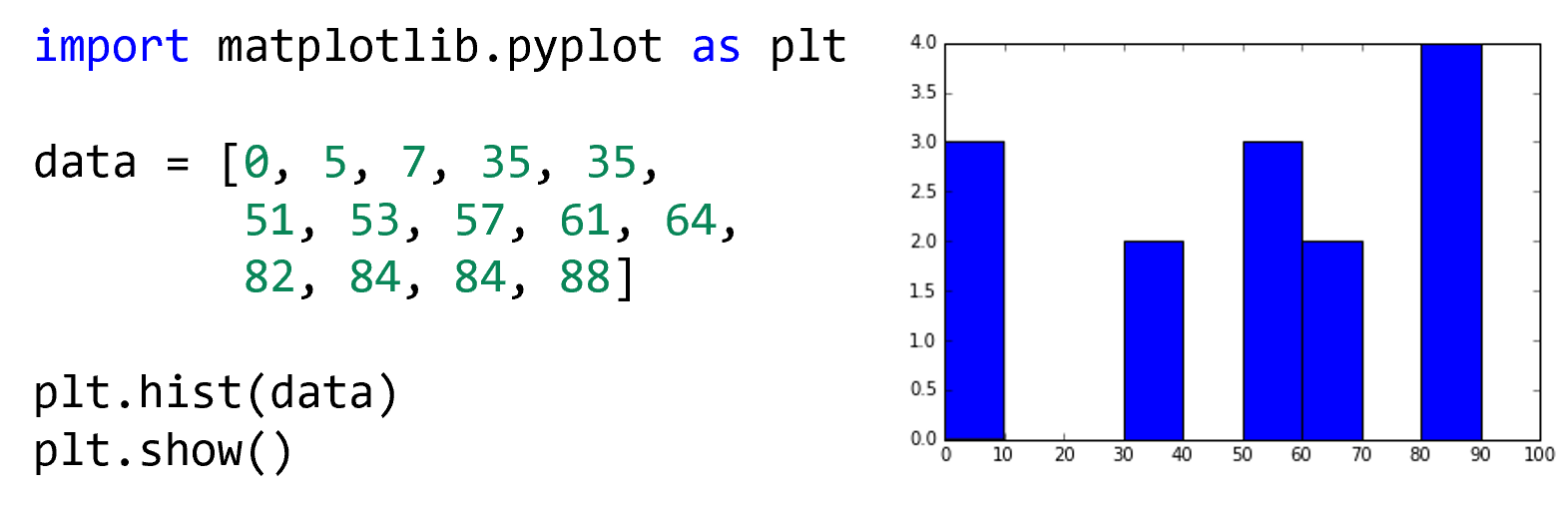
Some people find histograms confusing, but once mastered they are one of the most generally useful and fundamental kinds of graphs. Histograms allow us to see the distribution of the data. Is the data clustered around a single value, or spread out? Are certain values more popular than others? Histograms tell us all this and more. They should not be confused with Bar Charts, which are a more generalized kind of graph that tell you the frequency of categories of data. Instead, histograms take a list of numbers and group them into bins, or ranges of numbers. For example, if we have the list of numbers shown, we could group them into bins of size 10. Each tick on the y-axis means another number in that bin.
Line Plots
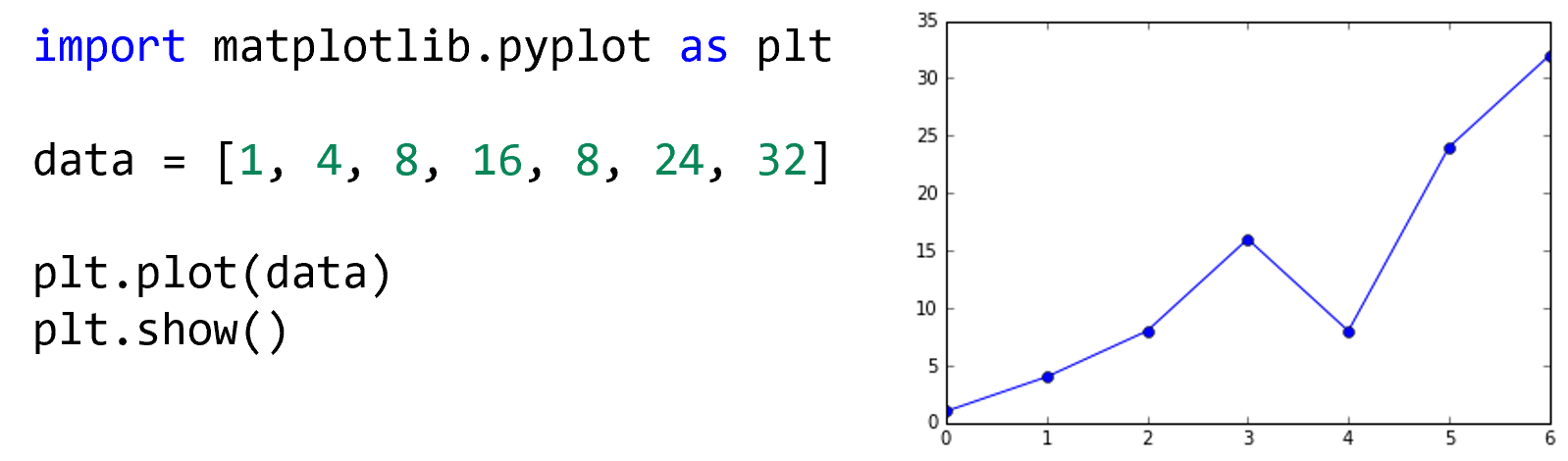
Line plots are another simple kind of graph, and can be used to show a trend over time or some other factor. Be careful when creating line plots, since people often use them when a Histogram would be more appropriate. The major difference is that a line plot requires the data to have some kind of meaningful ordering, while the histogram does not. You have to think critically about your data and what the data represents, before you know whether you need a histogram or a line plot. For instance, you could make a line plot of the grades you’ve earned over the course of the semester if they are ordered by date. But if the scores were not ordered, then a histogram would be more appropriate. When in doubt, always start with a histogram.
Scatter Plots
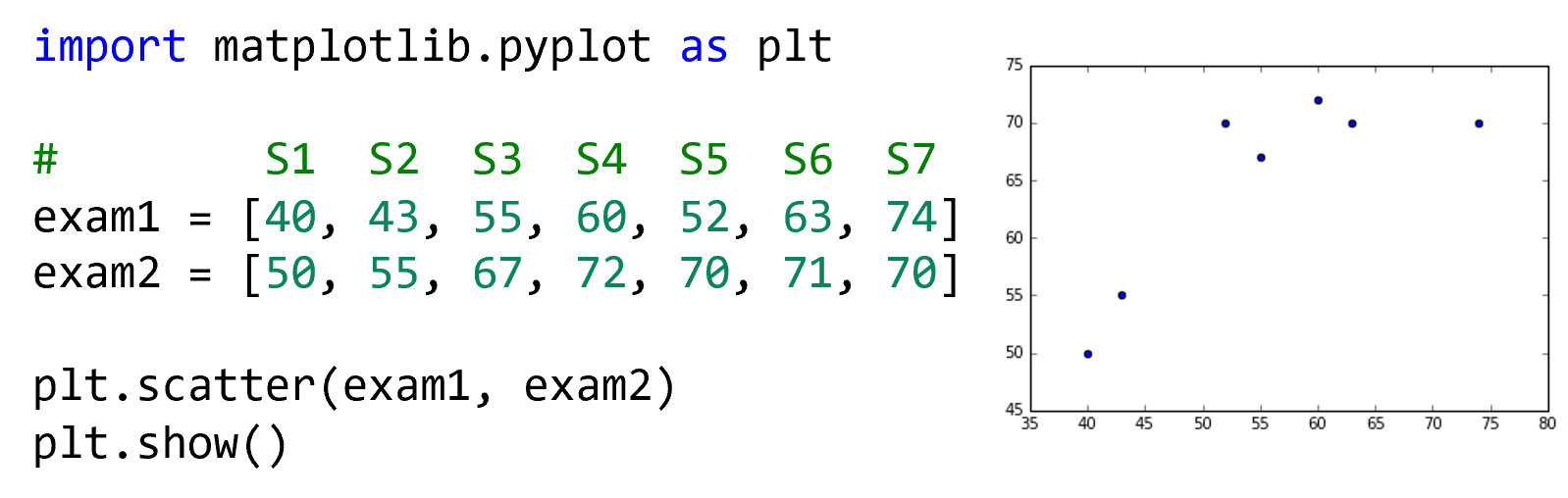
When you have two lists of data that you want to match up, a Scatter Plot is the graph to use. For example, the graph shown here matches students’ grade on a first exam with their grade on a second exam. A scatter plot is used to find relationships between the two lists of numbers. On its own, a scatter plot is not usually conclusive evidence, so you often have to follow-up with statistical tests. However, a scatter plot can help you explore the data and learn whether there might be a lurking correlation.
Labelling
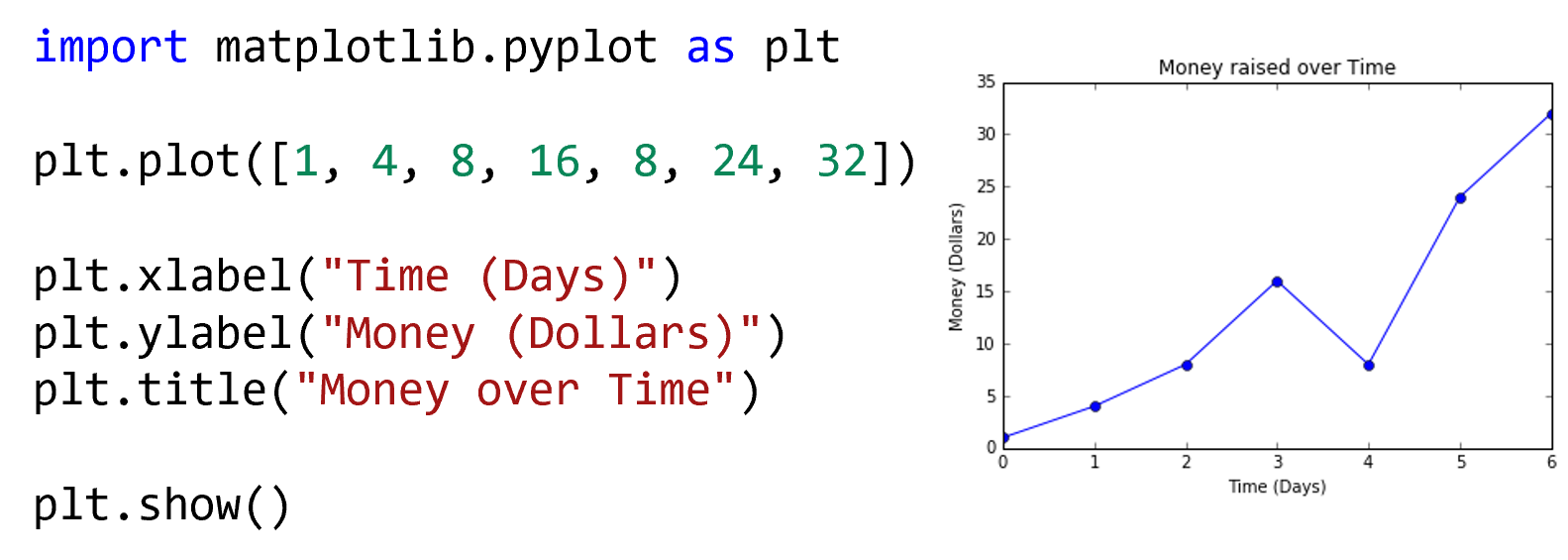
Professional data scientists always label their graphs. MatPlotLib makes it easy to label the X, Y, and title of the graph. The relevant functions are xlabel, ylabel, and title, each of which consumes a string. You should always label your graphs.
Show
import matplotlib.pyplot as plt

data = [0, 5, 7, 35, 35, 51, 53, 57,
        58, 61, 64, 82, 84, 84, 88]

plt.hist(data)
plt.show()

plt.plot(data)
plt.show()
A trick about creating plots is that you need to call the show function afterwards.
If you do not call the show function, no graph will appear.
This can be a common source of confusion, especially since the show function takes no arguments.
Remember, without the parentheses after the show, you are not actually calling a function.
When you run this code, notice that each time we call show, a new graph appears.
Multiple Plots on One Graph
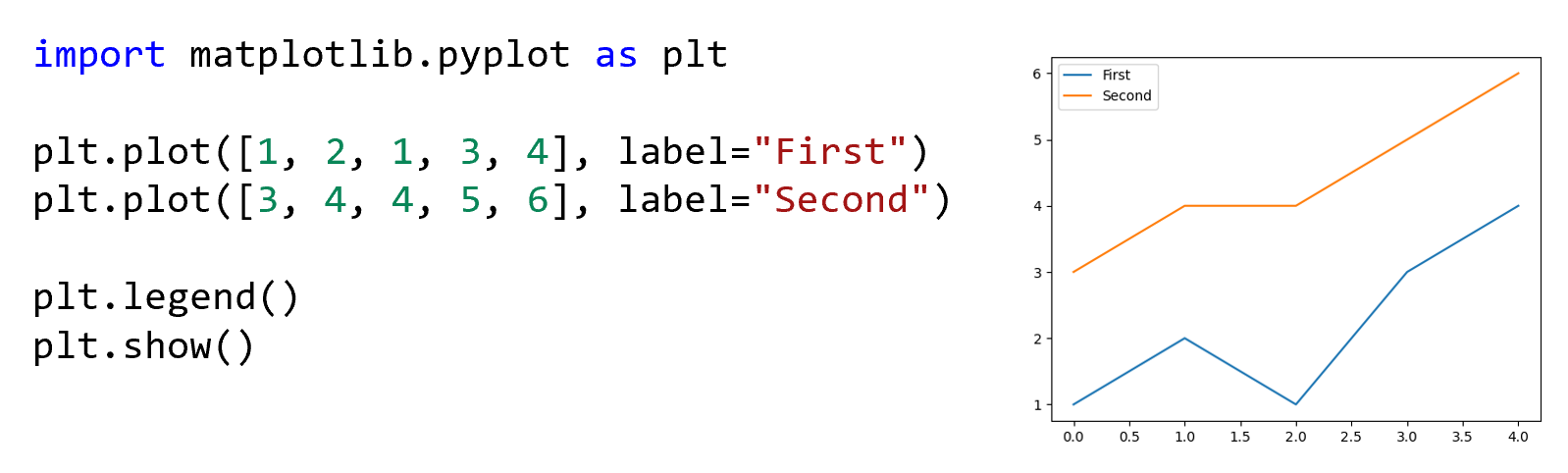
If you create multiple plots before calling the show function, each plot will be combined on the same canvas.
Generally, you do not want to combine graphs of different types, like histograms and line plots.
But overlapping line plots with each other is often helpful in comparing trends visually.
To make identifying which line is which easier, you should add a legend to the graph with the legend function.
This also requires the use of the label keyword argument, to give a name to each of the line plots.
Plotting Lists of Dataclasses
from dataclasses import dataclass
import matplotlib.pyplot as plt

@dataclass
class Student:
    name: str
    score: int

students = [Student("Ada", 96), Student("Babbage", 87),
            Student("Capn", 90), Student("Domino", 50),
            Student("Ellie", 100)]
scores = []
for student in students:
    scores.append(student.score)
plt.hist(scores)
plt.show()
So far, all of our examples have used simple list of literal primitive values. However, in practice, usually you will be plotting data taken from a sophisticated data source. One of the most common situations is a list of dataclasses, which cannot be plotted directly. Instead, you must map the list of dataclasses into a list of integers or floats.
Advanced Features
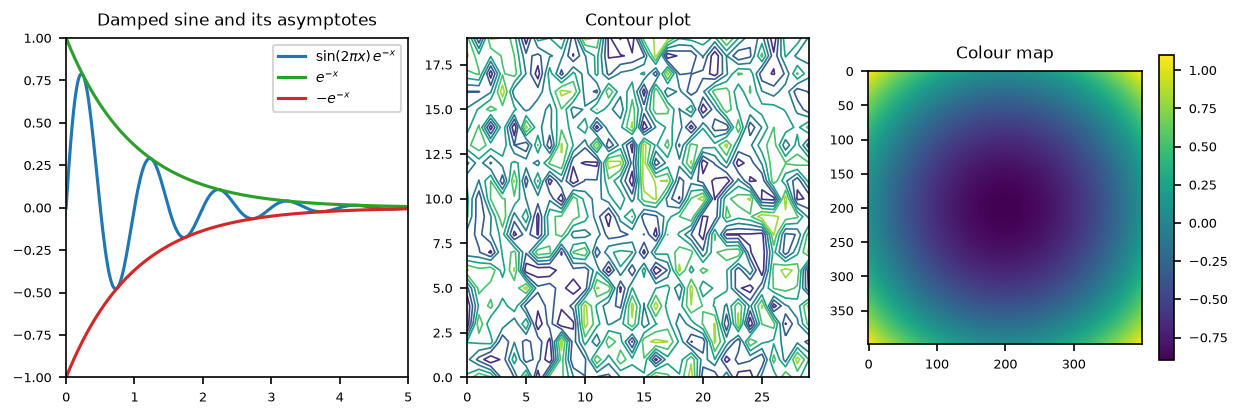
MatPlotLib is an extremely sophisticated library with many, many advanced features. It is very easy to make legends, adjust colors, more complicated graphs, and much more. Refer to the MatPlotLib documentation and look up examples of how to do more with MatPlotLib.