A System of Files
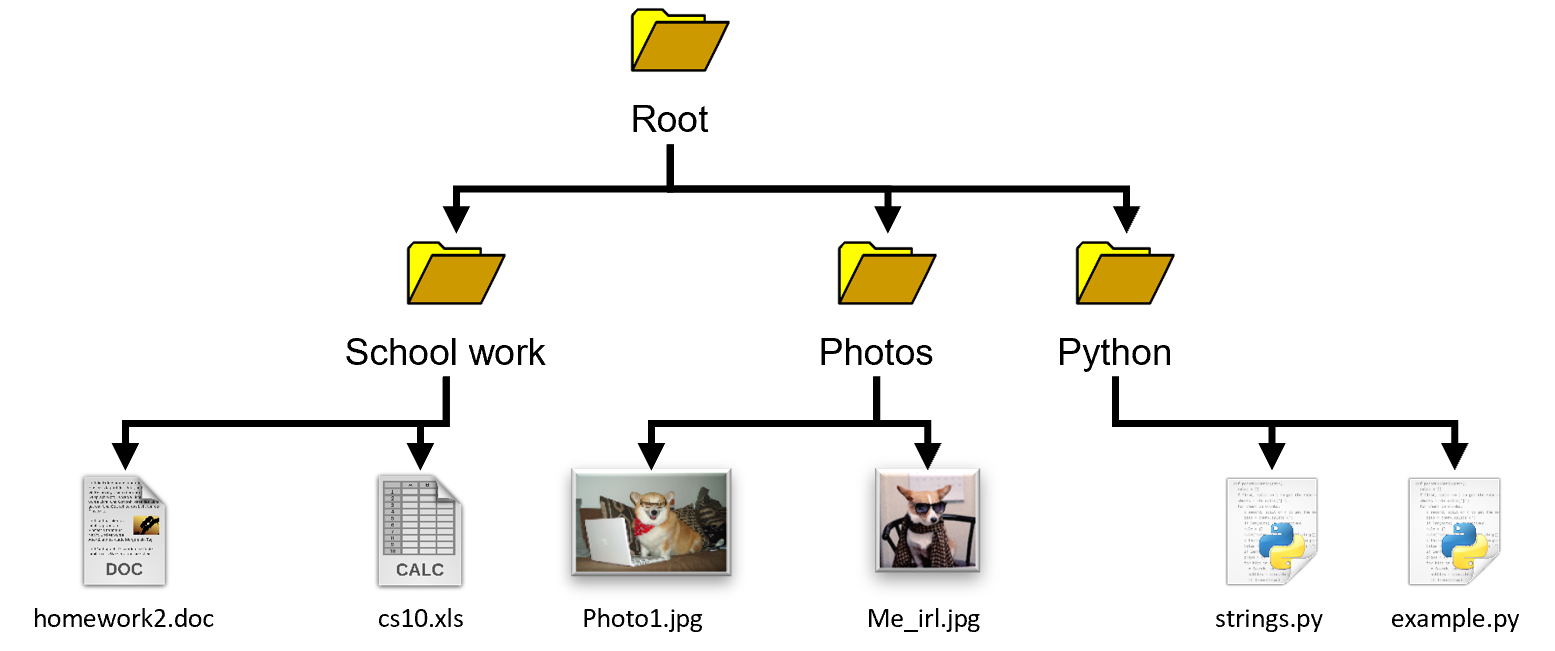
Your computer has a file system that lets you save and load files. A file is simply a sequence of data, not unlike a string. You create files all the time—text documents, pictures, music, python files, and so on. These files are organized by your computer’s file system.
Text Version
root/
  School work/
      homework2.doc
      cs10.xls
  Photos/
      Photo1.jpg
      Me_irl.jpg
  Python/
      strings.py
      example.py
The previous diagram could be written as a hierarchy of text too. Notice how we use indentation to show the files inside of folders.
Directories
- Directories: A collection of files and directories
- Files: A sequence of data external to a program
Directories, also known as folders, are a way to group files and other directories together. Because we can put directories inside of directories, we end up with a hierarchical system.
Paths
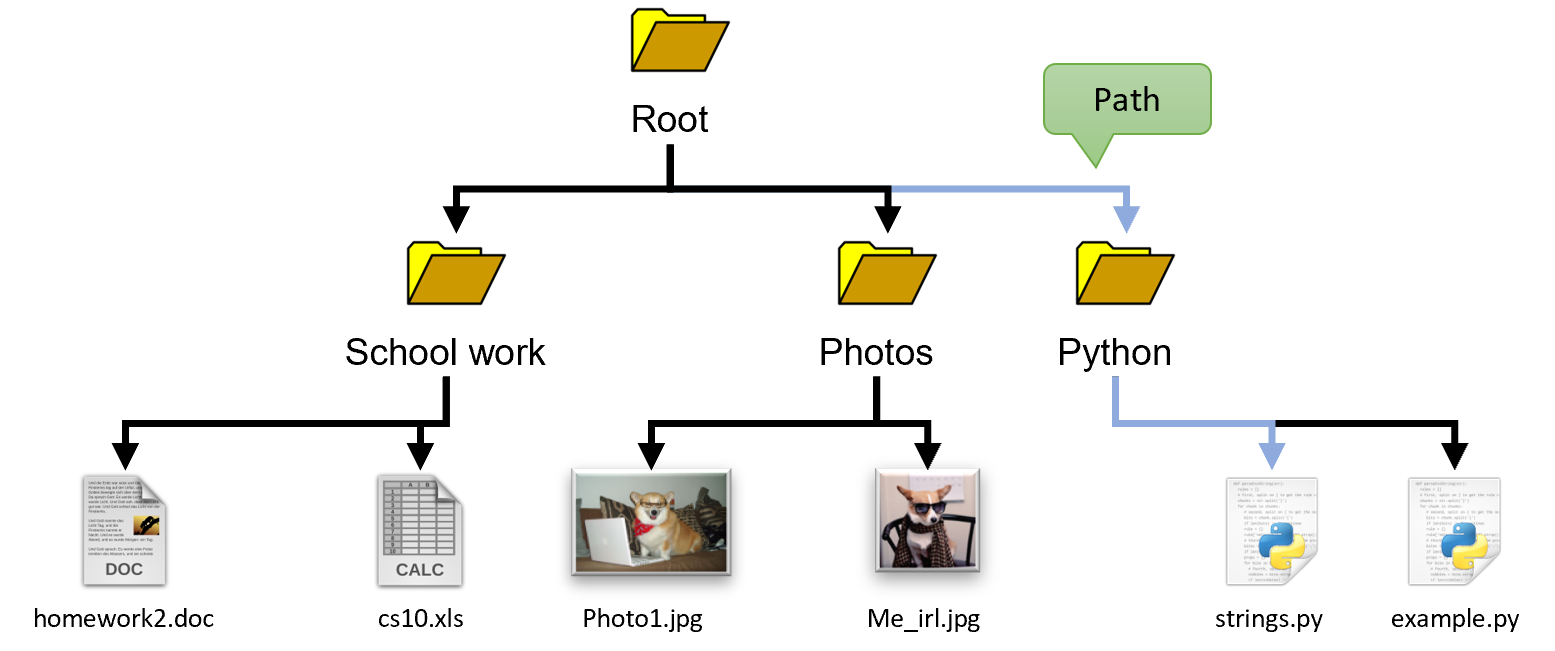
Think of files like a house. Directories are neighborhoods, cities, states, and successively bigger ways to group houses. Each file has a unique address within your file system called a path. We use these paths to navigate files and directories, just like we would navigate between houses and neighborhoods. In this diagram, the blue line is a path through the file system.
Absolute Path
/root/python/example.py
/home/acbart/python/example.py
C:/Users/acbart/python/example.py
C:\\Users\\acbart\\python\\example.py
The full address for a file is known as its absolute path. The exact format of the path will depend on your platform, but typically they are a series of folder names separated by slashes. In Python, it is typically best to use forward slashes since these tend to work regardless of the platform. Otherwise, you need to escape the backslashes with extra backslashes.
The Working Directory
pwd: Print the current working directory.ls: List files in the current working directory.ls path: List files in the directory of the path.cd path: Change the current working directory to the given path
Most modern programming environments have terminals (also known as command lines) that let you interact with the file system and run commands. The commands available for the terminal vary depending on the kind of terminal. Python provides a special command line called the REPL (Read-Evaluate-Print-Loop) that allows you to interactively run Python statements and see the output. However, you are restricted to using regular Python language statements. There are other kinds of terminals available for different platforms, each with their own distinct commands. The most common kind of terminals do not actually support Python commands; instead, they support their own special set of commands for interacting with the file system.
It might seem a little confusing, but it’s important to recognize the difference between the Python terminal (which starts with three angle brackets >>>) and the regular terminal (which can start with many different kinds of symbols, such as $>).
Current Working Directory
$> pwd
C:/Users/acbart/projects/pythonmisc/
A regular terminal usually has a current working directory, which is where you are now in the file system.
You can check your current directory using the pwd command.
PWD stands for print working directory.
It’s not actually a Python command.
In the regular command line, you would not need any special prefix to run it.
Relative Paths
$> ls

Date        Time        Type  Size     Name
09/17/2017  09:41 PM    <DIR>          .
09/17/2017  09:41 PM    <DIR>          ..
09/12/2017  03:11 PM    <DIR>          photos
09/14/2017  05:34 PM    <DIR>          music
09/11/2017  02:45 PM    <DIR>          python
09/02/2016  06:08 PM             6,228 homework5.pdf
09/02/2016  06:08 PM             9,650 example.py
08/08/2015  07:43 PM           340,489 historyOfDogs.png
08/08/2015  07:44 PM           422,316 taxReturns.docx
An absolute path only works on your own computer. Giving someone else an absolute path will usually not work, since most people will organize their computer differently. Therefore, it is usually better to use a relative path to make your program easier to share with other people. A relative path is the part of an absolute path minus the current working directory, which means a relative path will usually be much shorter than an absolute path.
If there are folders in your current working directory, you can reference them without writing the absolute path.
Instead, the folder’s path is simply its name.
You can see a list of the folders in your current directory by using the ls command.
ls stands for “list”, as in “list the files”.
Moving between directories
# Absolute path:
# Move to specific folder anywhere in your file system
$> cd /c/Users/acbart/projects

# Relative path:
# Move to folder in current directory
$> cd pythonmisc/

# Move up a level
$> cd ../
To move the current working directory to another, we use the cd command (“change directories”).
You can move to an absolute path or a relative path.
You can also move up a folder level by using a pair of periods.
The folder above the current folder is called the parent folder in the path.
Commands
| Command | Description |
|---|---|
pwd | print current working directory |
ls | list files in current working directory |
ls <path> | list files in the directory of the path |
cd <path> | change the current working directory to that path |
It can be tricky to remember these commands, but knowing how to use them will serve you well when you start working on larger projects.
Summary
- File systems are organized collections of files and directories.
- Directories are collections of files and other directories.
- Files are a collection of data that can be read and written from programs to preserve and share data between executions of a program.
- Terminals allow you to interact with a file system using specialized commands:
- You can use the
cdcommand to change the current working directory. - You can use the
pwdcommand to print the current working directory. - You can use the
lscommand to list the files in a given path or in the current working directory.
- You can use the
- Python’s REPL terminal is different from the regular terminal.